





Enabling Predictive Text
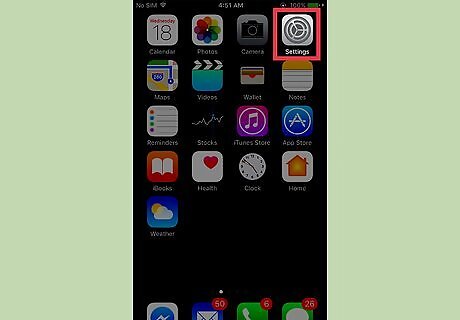
Open your iPhone’s Settings. The icon looks like a set of grey cogs located on one of the home screens. If Settings isn’t present on a home screen, its icon can be located in the Utilities folder on one of the home screens.
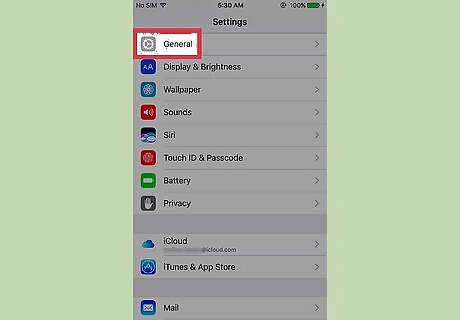
Tap General. It is located in the third group of menu options.

Scroll down and tap Keyboard. It is located in the seventh group of menu options.
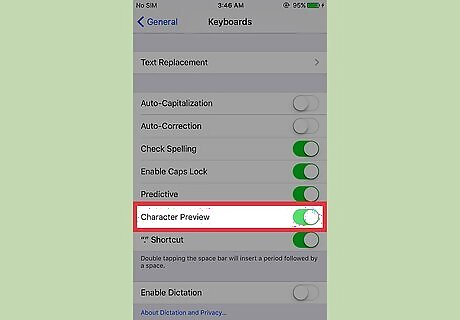
Scroll down and slide the Predictive button to the “on” position. This will enable QuickType. Now, whenever you use the default keyboard, words will begin to appear above the letters as you type as the app tries to predict the word you are typing.
Using Predictive Text
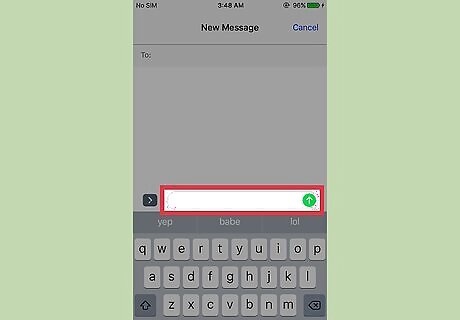
Open a text field. This will require tapping on a text box in a browser, email, or other app where you can input and edit text.

Type in the first few letters of a desired word. Suggested words will begin to appear above the keyboard as you type.
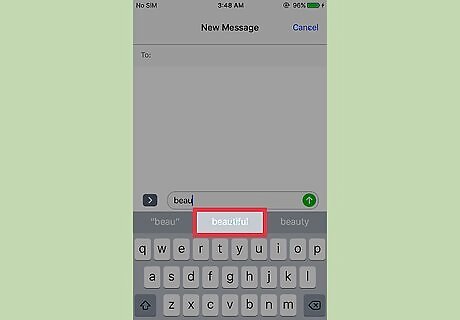
Tap on a suggested word. This will complete the word you have been typing and will place it into the text field.












Comments
0 comment